+33-9-7266-3068
 contact@gdm-pixel.fr








 TL;DR - Key Takeaways at a Glance
In this article, we are going to talk about a subject that is very close to my heart: performance optimisation and load times.
It is a topic I have explored in depth throughout my years of development. Today, I have left the WordPress ecosystem behind in favour of Astro, which offers far better performance and faster load times.
But I still manage dozens of WordPress sites, and I can say that I am quite good at everything related to performance. In short, we are going to talk about caching, minification, compression, cache preloading, and so on. Everything you need to have a lightning-fast site.
Imagine for a moment that your website is a very busy restaurant. Every customer (visitor) who arrives orders the same thing (a web page). Without cache, the chef (your server) has to prepare every dish (page) from scratch each time. That takes time, and it wears the chef out (your server is under stress).
Caching is like having a buffet already laid out with the most popular dishes. When a customer arrives and asks for a dish from the buffet, it is served immediately. It is much faster, and the chef can focus on the specials (dynamic requests).
The idea is simple: store a static version of your WordPress site’s pages so they can be served more quickly to visitors.
The result? A better user experience, better SEO rankings, and a server that can breathe. Ready to discover the best WordPress cache plugins for your website? Let’s go!
The importance of WordPress caching
Why bother with WordPress caching? Simply because it is a powerful lever for improving your site’s speed and overall web performance. A fast website is a bit like a Formula 1 car: it attracts attention, impresses, and converts.
What is caching and why does it matter?
WordPress caching is a smart investment for any WordPress site. And above all, it is the first lever to activate in order to improve load times.
Indeed, THE thing that will ruin your performance is page compilation: the WordPress CMS has to “create” the page from multiple files (PHP, CSS, JS, images, etc.). This compilation is very slow and consumes a lot of resources.
Caching is simply storing a static version of your WordPress site’s pages so they can be served more quickly to visitors. That way, there is no need to recompile the page for every visitor, and you gain in performance (the page is ready to use).

This is the foundation of your website’s performance, because caching enables the following:
- Improved user experience. Nobody likes to wait. Short page load times mean happy visitors who stay longer on your WordPress site and explore more.
- Search engine optimisation (SEO). Google loves fast websites. Speed is an important ranking factor, so a good WordPress cache can help you climb the search results.
- Reduced server load. Fewer resources used means less stress on your server and potentially lower hosting costs.
The different types of cache
If we want to go into a bit more detail, there are several types of cache, each with its own characteristics:
-
Browser cache: This is the cache built into your web browser. It stores images, stylesheets, and other static files directly on your computer. So on subsequent visits, these elements load instantly. It is a bit like having a drawer full of your favourite tools within reach.
-
Server cache: This is the most common cache for WordPress sites. The server stores a static copy of your website’s pages and serves it directly to visitors, without having to query the database each time. Think of it as a photocopy of a book that the librarian keeps close at hand.
-
Object cache: This type of cache stores the results of database queries. It is useful for complex WordPress sites with many dynamic queries. It is like having a database of answers to the most frequently asked questions.
-
Opcode cache: Specific to PHP, it stores pre-compiled PHP code, which speeds up script execution. It is like having a recipe already translated into your native language.
Each type of cache plays an important role in optimising your site’s performance. The best WordPress cache plugins often combine several of these techniques for maximum effect.
How to test your website’s speed
Before choosing a cache plugin and after installing it, it is crucial to test your website’s speed. It is like checking whether a new engine in your car is working properly.
Here are some popular tools for testing your site’s speed:
- Google PageSpeed Insights: A free Google tool that analyses your site’s speed and gives you improvement recommendations.
- GTmetrix: Another popular tool that provides detailed information on page load times, HTTP requests, and other performance metrics.
- Pingdom Website Speed Test: A simple and effective tool for measuring page load times from different locations around the world.
The goal is simple: identify your site’s weak points and verify whether the cache plugin truly improves page load times.
Do not forget to test your site before and after installing the WordPress cache plugin to measure the real impact of caching. The faster your site, the happier your visitors, and the more Google will like it!

The best WordPress cache plugins: detailed comparison
Now that you understand the importance of WordPress caching and the different types of cache available, it is time to get serious: choosing the best WordPress cache plugin for your website.
It is a bit like choosing the right tool from a toolbox: there are many of them, but some are better suited to your needs than others. We are going to review some of the most popular cache plugins, detailing their advantages, disadvantages, and key features. Get ready to load up on information to speed up your WordPress site!
WP Rocket: the most powerful premium cache plugin
WP Rocket is often considered the best premium WordPress cache plugin. Think of it as a Formula 1 car: it is fast, powerful, and packed with features.
It offers complete and easy-to-configure caching, even for beginners. WP Rocket handles everything, from page caching to minification of CSS and JavaScript files, including cache preloading. It is truly designed to improve the speed of your WordPress site without you having to wrestle with complex configurations.
- Key features: Page caching, cache preloading, CSS/JS minification, image lazy loading, CDN integration, database optimisation.
- Advantages: Ease of use, performance optimisation, quality technical support.
- Disadvantages: Paid, can be a bit expensive for small budgets.
To be completely honest, WP Rocket is a bit of a cheater’s plugin. For one reason. The thing that most hurts your performance score on PageSpeed Insights is JavaScript (I have my own little theory about this).
Indeed, JavaScript is the code that puts the most pressure on your device’s processor. And PageSpeed Insights emulates a page load from a mobile phone.
So a device with a small processor, a small battery, and limited bandwidth. JavaScript will hit load times very hard (I am cutting a few corners here to avoid overloading you with overly technical information).
WP Rocket therefore has a feature that allows JavaScript loading to be deferred. If it does not detect a human behind the screen (mouse movement, scroll on the phone, etc.), the JavaScript does not load.
So if it is a bot requesting the page (the PageSpeed Insights robot), the JavaScript does not load. Therefore performance is good, therefore you get a good score.
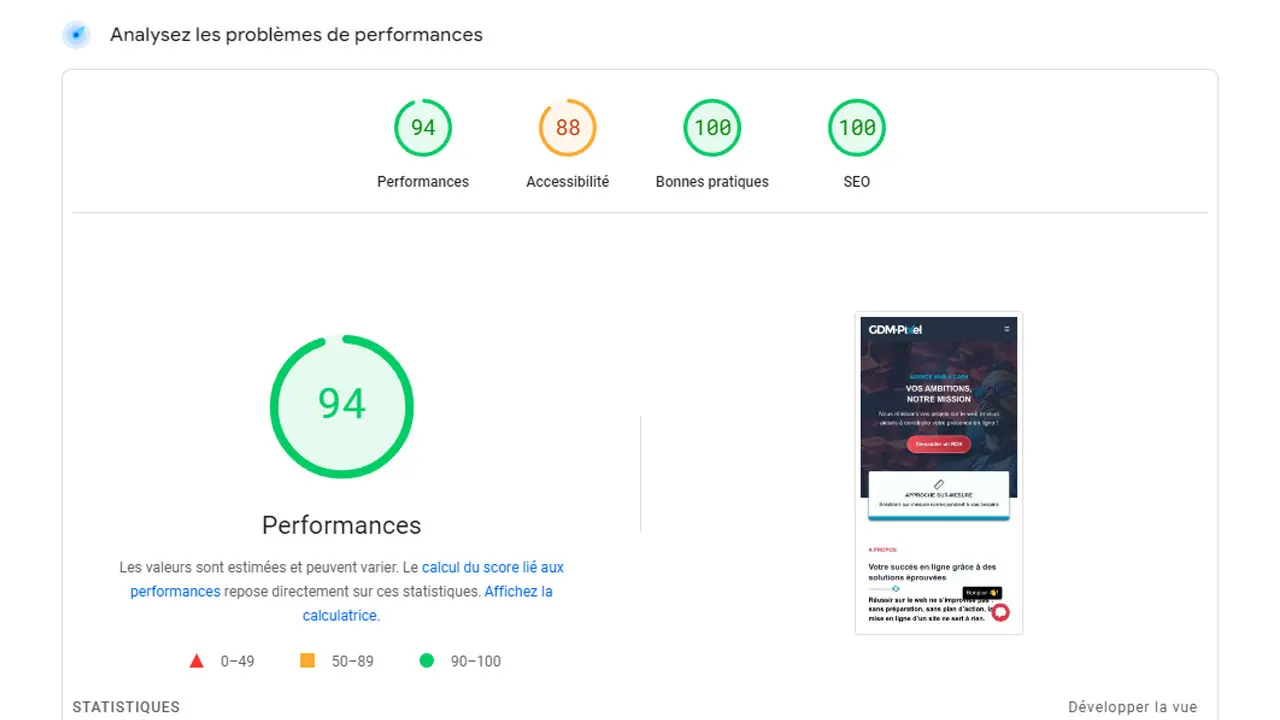
However, in real life, the actual user will still take the JavaScript hit. That is why I say it is a bit of a cheat: the dice are loaded.
On the other hand, the rendering will still be super fast, so in the end… it does not really matter. What counts is that the page rendering — that is, the action of displaying it correctly — is as fast as possible.
WP Rocket’s great strength is its simplicity: it is installed in three clicks, configured in two minutes, an absolute pleasure.
Calculating the critical CSS and placing it in the head considerably speeds up the page display time, especially on mobile. I will stop with the technical details there.
In summary: WP Rocket is simply THE best cache plugin for WordPress. Download it here: WP Rocket
W3 Total Cache: a free and comprehensive cache plugin
W3 Total Cache is a free WordPress cache plugin, but do not be misled by the price: it is extremely powerful and offers a wealth of features. It is a bit like a Swiss army knife: it has everything you need, but it can sometimes take a while to learn how to use it.
It supports all types of cache, from browser cache to object cache, and offers advanced configuration options for experienced users.
W3 Total Cache can be a bit intimidating at first, but if you are willing to invest the time to master it, it can work wonders for your site’s performance. W3 Total Cache offers, for example, caching of web pages, as well as minification and file combining.
- Key features: Page caching, browser caching, object caching, CSS/JS minification, CDN integration, database optimisation.
- Advantages: Free, very comprehensive, many configuration options.
- Disadvantages: Can be complex to configure, less intuitive user interface than WP Rocket.
Personally, this is the one I started with, almost fifteen years ago.
WP Super Cache: the simple and effective cache plugin
WP Super Cache is another free WordPress cache plugin, but it stands out for its ease of use. It is like a good old tractor: it is not the fastest or the most sophisticated, but it does the job reliably and efficiently.
It generates static HTML files from your WordPress site, which considerably reduces the load on the server. Super Cache is another excellent choice if you are looking for a simple cache plugin to configure and use.
- Key features: Static page caching, cache preloading, simple CDN support.
- Advantages: Easy to use, free, good performance-to-simplicity ratio.
- Disadvantages: Fewer advanced features than W3 Total Cache or WP Rocket.
If you are just getting started, this is one of the easiest to get to grips with.
LiteSpeed Cache: optimisation for LiteSpeed servers
LiteSpeed Cache is a cache plugin designed specifically for LiteSpeed servers. If your hosting provider uses LiteSpeed (O2Switch for example), this plugin is an obvious choice. It is a bit like using racing tyres on a racing car: it is optimised to get the best out of the environment in which it operates.
It offers advanced caching and performance optimisation features specific to LiteSpeed servers.
- Key features: Page caching, object caching, image optimisation, Edge Side Includes (ESI) caching.
- Advantages: Optimised for LiteSpeed servers, free, many features.
- Disadvantages: Only works optimally on LiteSpeed servers.

WP Fastest Cache: an easy-to-use cache plugin
WP Fastest Cache is, as its name suggests, a WordPress cache plugin designed to be fast and easy to use. It lets you cache web pages and improve the speed of your WordPress site with minimal configuration.
It is a good choice if you are looking for a simple and effective cache plugin that does not require in-depth technical knowledge.
- Key features: Page caching, CSS/JS minification, CDN integration, browser caching.
- Advantages: Easy to use, free, speed improvement quickly.
- Disadvantages: Some advanced features are reserved for the premium version.
Cache Enabler: a simple cache plugin
Cache Enabler is a simple and lightweight cache plugin that focuses on the essentials: page caching. It offers a clear and intuitive user interface, making it easy to configure even for beginners.
If you are looking for a no-frills cache plugin that gets the job done, Cache Enabler could be a good choice.
- Key features: Page caching, automatic cache clearing, custom post type support.
- Advantages: Simple to use, free, lightweight.
- Disadvantages: Fewer advanced features than other cache plugins.
How to choose the best WordPress cache plugin for your site?
So how do you sort through them and choose the one that best fits your needs? It is a bit like choosing a pair of shoes: you have to take size, style, and intended use into account. Do not worry, we are going to break this down together to help you make the best decision to speed up your site!
Assess your website’s needs: traffic, content, hosting
Before diving in headfirst, take the time to analyse your website. It is a bit like doing a health check before starting a diet: you need to know your weak points and your strengths.

- Traffic: Does your site receive a lot of visits? A WordPress site with heavy traffic will need a robust cache plugin capable of handling the load.
- Content: Do you have a lot of dynamic content (e-commerce, forums, etc.)? In that case, you will need a caching plugin capable of handling dynamic caching.
- Hosting: What type of hosting are you using? Certain cache plugins, like LiteSpeed Cache, are optimised for specific environments. Check compatibility before making your choice.
Compare the features and ease of use of caching plugins
Now that you know your needs, it is time to compare the different cache plugins available. It is a bit like comparing the specs of different cars before buying one.
- Features: What types of caching are offered? Page caching, browser caching, CSS/JS minification, image lazy loading, CDN integration… Make a list of the essential features for your site and check whether the cache plugin offers them.
- Ease of use: Is the plugin easy to configure and use? Some plugins, like WP Rocket, are designed to be intuitive, while others, like W3 Total Cache, offer more configuration options but can be more complex to master.
Take your technical skill level into account
Let us be honest: are you a technical pro or more of a beginner? It is a bit like choosing a bike: if you have never ridden a bike, you are not going to start with a downhill mountain bike!
- Beginner: If you are a beginner, go for a simple and easy-to-use cache plugin, like WP Fastest Cache or Cache Enabler.
- Intermediate: If you have some technical knowledge, you can consider a more comprehensive cache plugin, like WP Super Cache or LiteSpeed Cache.
- Expert: If you are an expert, you can dive into the advanced configuration of a cache plugin like W3 Total Cache, which offers a wealth of customisation options.
Do not forget, you can always start simple and then upgrade as you gain experience. The important thing is to choose a cache plugin that lets you improve the speed of your WordPress site without pulling your hair out!
Advanced WordPress caching optimisation
You have installed your WordPress cache plugin, configured it, and your site is already faster. Well done! But did you know you could go even further in optimising caching?
It is a bit like fine-tuning a racing car’s settings to gain a few precious seconds on the circuit. We are going to explore advanced techniques together to speed up your WordPress site to the maximum. Ready to take it up a gear?

Browser cache configuration for a better user experience
Browser cache is a bit like your web browser’s short-term memory. It stores static elements of your website (images, CSS, JavaScript) so they do not need to be re-downloaded on each visit. When properly configured, it can considerably improve the loading speed of your site’s pages for returning visitors.
- How does it work? The server sends instructions to the browser telling it how long to keep each file in cache.
- Configuration: Most cache plugins allow you to set the browser cache duration in a few clicks. Feel free to adjust the cache settings to find the right balance between content freshness and site speed.
Using a CDN (Content Delivery Network) to speed up content delivery
Imagine a global network of servers that host a copy of your website. That is a CDN! When a visitor accesses your site, the CDN serves the content from the server closest to their geographic location.
The result: reduced page load times, a better user experience, and greater resilience to traffic spikes. It is like having a pizza restaurant on every street corner: no more travelling miles to enjoy a good pizza!
Do not rush into this: you will see a performance gain, especially if your server is very slow. It is also a good choice if you have a site translated into several languages, as the CDN allows you to distribute your site’s files from multiple servers around the world.
But if your audience is local, the gain will not be that significant. Let us add another positive point though: you will very likely benefit from protection against DDoS (Distributed Denial of Service) attacks.
Among the most commonly mentioned CDNs, we can cite Cloudflare, which is one of the best known and offers comprehensive protection, as well as KeyCDN or BunnyCDN, which are lighter solutions.

Minification and combination of CSS and JavaScript files
Are your CSS and JavaScript files full of comments, unnecessary spaces, and redundant code? Minification consists of removing all these superfluous elements to reduce file size.
Combining, meanwhile, groups several files into one. Fewer files = fewer HTTP requests = faster site! It is a bit like tidying up your belongings: by optimising space, you gain efficiency. Almost all cache plugins allow this optimisation.
Do not forget: the fewer files you send, and the lighter they are, the better!
Image optimisation to reduce file sizes
Images are often the heaviest elements on a web page. Optimising them is a bit like putting your site on a diet: you reduce file sizes without sacrificing visual quality. You can compress images, resize them to the appropriate dimensions, and use modern formats like WebP. Many WordPress plugins can automate this process for you.
Regular WordPress database cleaning
Your WordPress database is like an attic: over time, it fills up with useless items (post revisions, spam comments, etc.). Regular cleaning removes this clutter and optimises your site’s performance. It is like sorting through your belongings: you get rid of what is no longer useful and free up space! There are plugins dedicated to this task, such as WP-Optimize or Advanced Database Cleaner.
Implementing cache preloading
Cache preloading is like preparing the track before a race. Instead of waiting for visitors to access your pages to cache them, you ask your cache plugin to generate them automatically. That way, the first visit is just as fast as subsequent ones. It is a bit like preheating the oven before baking a cake: you are sure to have a perfect bake from the start! Most modern cache plugins offer this caching feature.
Common mistakes to avoid with WordPress caching
WordPress caching is a bit like a garden: it needs maintenance. Even with the best WordPress cache plugin, it is easy to make mistakes that can harm your site’s performance instead of improving it. So, ready to avoid the most common pitfalls? We are going to review the most important mistakes to avoid so your WordPress site remains a rocket!
Compatibility issues with other plugins
It is the classic scenario. Your beloved cache plugin can come into conflict with other WordPress plugins. Imagine two chefs trying to cook in the same kitchen: things can quickly turn to chaos! These conflicts can cause errors, display bugs, or even crash your website.
- How to identify them? If you notice strange behaviour after installing or updating a plugin, deactivate your plugins one by one to identify the culprit. Once you have unmasked the offender, look for an alternative or contact the developer to report the problem.
- Plugins most likely to cause problems: Security plugins, image optimisation plugins, and some advanced customisation plugins are often the source of these conflicts.
Just be careful not to activate redundant features, and everything should be fine.
James’s tip: when you install a caching solution, clear your browser cache to make sure everything is OK.
Incorrect cache configuration
A cache plugin is like a Formula 1 car: powerful, but complex to tune. An incorrect configuration can have disastrous effects. Poorly configured caching can display outdated versions of your web pages, prevent certain features from working correctly, or even slow your site down instead of speeding it up.

- Common errors: Not enabling page caching, using overly aggressive cache settings, or ignoring advanced options (such as dynamic caching) are all traps to avoid.
- The solution: Take the time to read your plugin’s documentation and understand the different options. Test different settings and use tools like Google PageSpeed Insights to measure the impact on your site’s speed.
Forgetting to clear the cache after updates
This is the beginner’s classic mistake. You modify your WordPress site, you add a new article, you change a design… and nothing changes! Your cache plugin keeps displaying the previous version. It is like trying to serve a cold dish when it has just been freshly prepared.
- Why does it matter? For your visitors to see the latest cached version of your website, it is essential to clear the cache after every update. Most plugins offer a button to clear the cache in a single click from the WordPress dashboard.
- Automation: Some caching plugins offer automatic cache purging after an update. Enable this option to avoid forgetting to do it manually.
And do not forget to clear your browser cache!
Ignoring the importance of mobile caching
Today, the majority of internet users browse the web from their smartphones. If your site is not optimised for mobile, you risk losing many visitors. Mobile caching is therefore crucial for providing an optimal user experience on all devices.
- How does it work? Some plugins automatically detect the type of device used by the visitor and serve an optimised cached version for mobile.
- Check: Make sure your plugin supports caching for mobile devices and verify that your site displays correctly on different smartphones and tablets.
This is a marginal concern, as modern sites serve the same type of page whether on desktop or mobile. But if your theme uses a mobile version, this will need to be checked.
Server overload with overly aggressive cache settings
Caching is good, but too much is as bad as too little. Overly aggressive cache settings can overload your server and cause errors. It is like asking your body to run a marathon without training.
- The symptoms: 500 errors, sudden slowdowns, CPU usage spikes… These signs may indicate server overload.
- The solution: Gradually reduce the aggressiveness of your cache settings and monitor your site’s performance to find the right balance. Do not hesitate to contact your hosting provider if you have any doubts.

There is nothing more annoying than server-side cache that purges poorly. Well, for developers at least. Normally you will not have any problems, but do not rule out this type of issue when you have cleared everything you can on your end and your content update is still not showing…
Choosing the best cache plugin for a fast WordPress website
Choosing the right plugin can seem daunting at first, but with the right information, you can turn your WordPress website into a true Formula 1 car. The ultimate goal is to improve your site’s speed, reduce page load times, and offer an optimal user experience.
So, what is the best WordPress cache plugin for you? I would say it is the one you are most comfortable with.
In any case, do not forget that a site’s speed is above all about good practices during its design, and a decent server. And when cache alone is no longer enough or a plugin conflict breaks everything, a WordPress maintenance and troubleshooting contract ensures those settings stay stable over time.
If you build your site by hand, paying attention to every step of its design, on an NVMe SSD VPS, your performance will be less dependent on a technical solution than if you settled for installing Elementor on a shared server at €1 per month…
After all, you also learn by making mistakes: and for performance optimisation, it is no different. Test, test, test: that is how you become an expert!
 Social networks
 Analyze with AI